
I installed Omarchy on my first-generation Microsoft Surface Book, mostly to find out whether this 2015 laptop could still make a good .NET development machine.
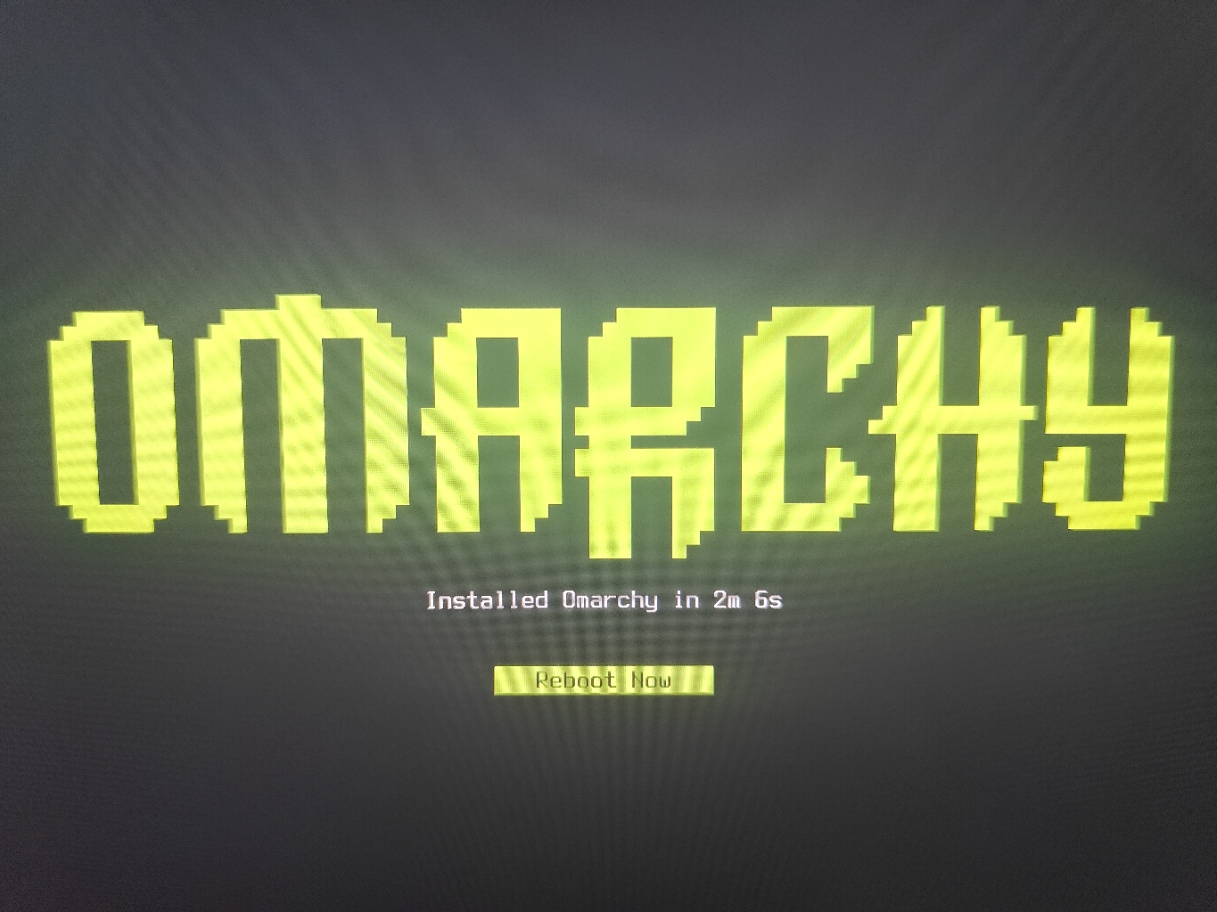
The installation took about two minutes.
That was the first surprise. It is my timing on my machine, not a benchmark, but it matches Omarchy’s own guidance. The documentation says installation can take less than a minute on fast hardware and no more than five minutes on older computers.
Two minutes on an original Surface Book certainly works for me.
A development environment almost immediately
After the first boot, I expected the usual long setup session. Instead, many of the tools I use were already available. Omarchy includes Git, Docker, Mise, Neovim, herdr, ripgrep, the .NET runtime, node, and plenty more. Additional environments are available from the Install > Development menu.
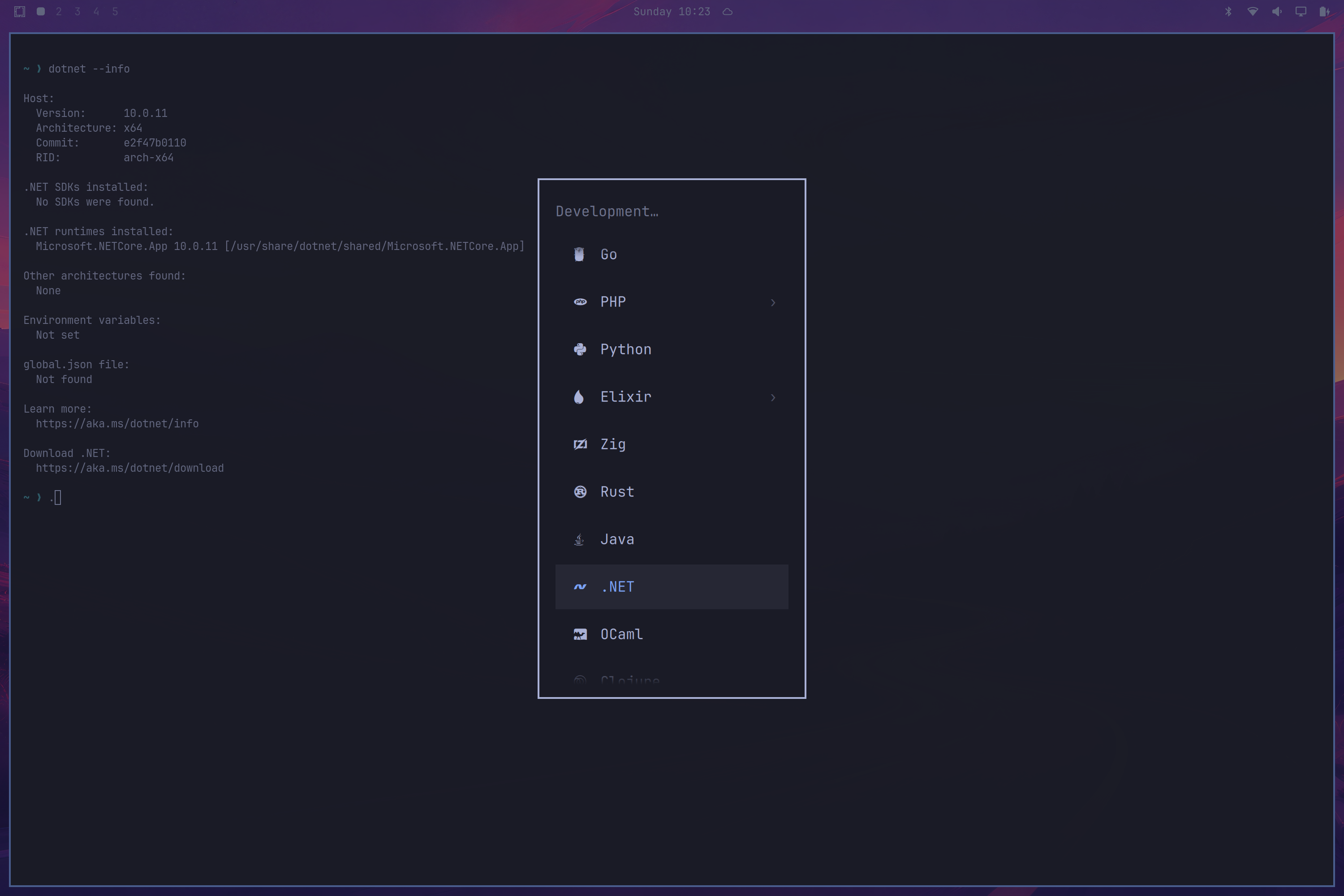
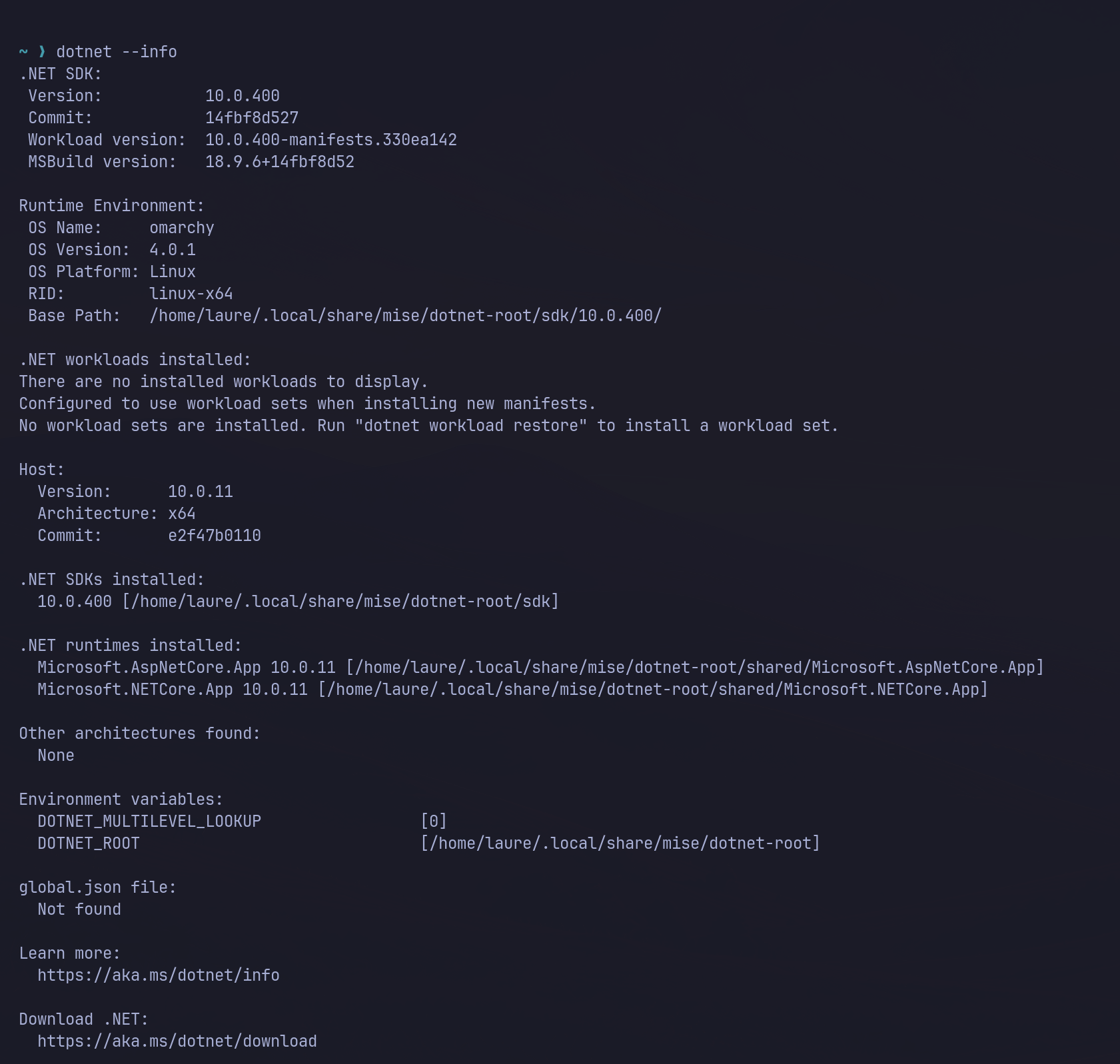
I still need to check the full .NET setup against real projects. Having dotnet-runtime installed does not guarantee that every SDK, workload, targeting pack, or debugger I need is present. That test comes next.
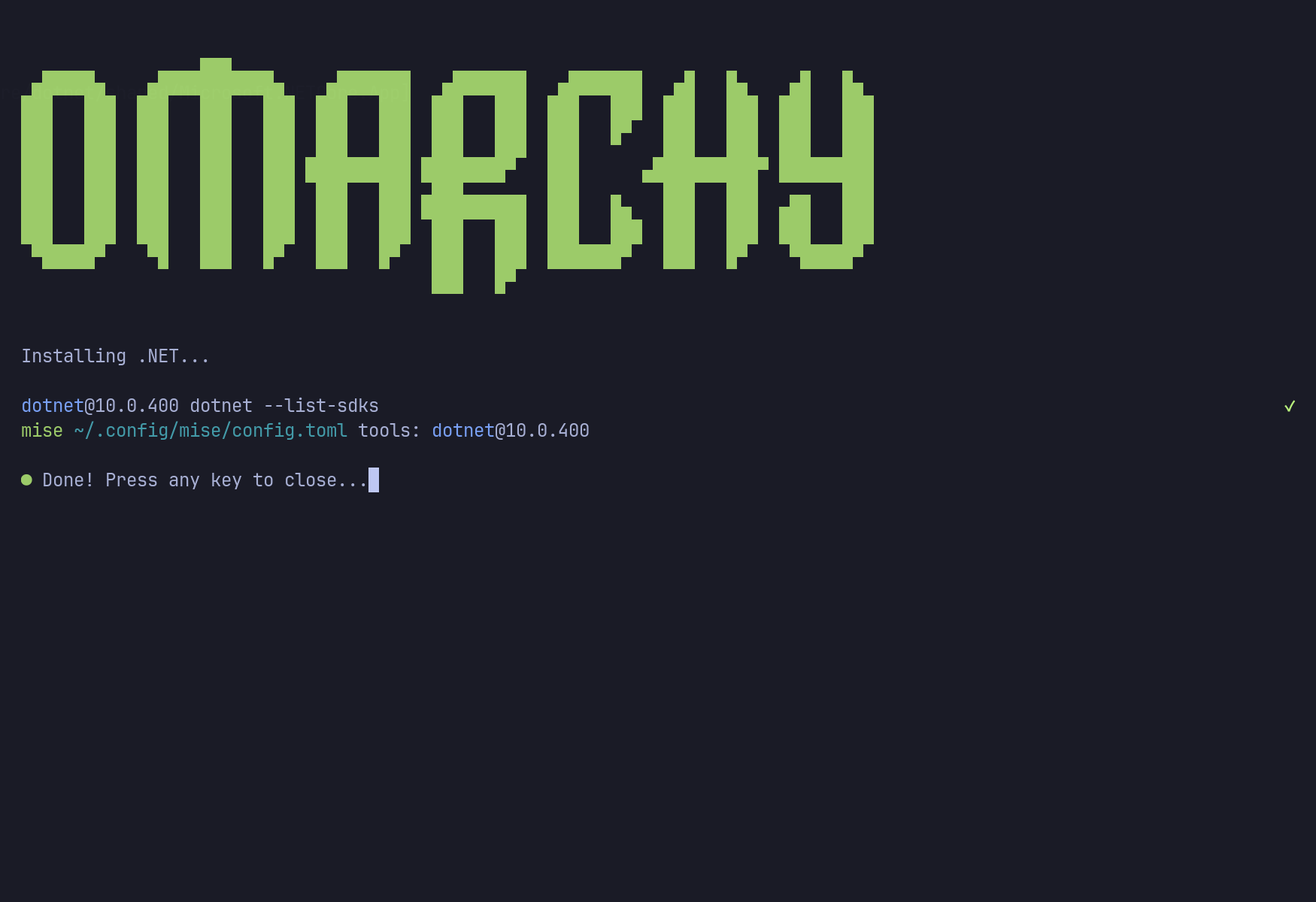
For the editor, I installed Visual Studio Code through Omarchy and added JetBrains’ ReSharper C# extension. ReSharper in VS Code on Linux is quite new for me, so I was curious to try it on this machine. It gives me a lighter option before opening a full IDE.
Of course, I installed Rider too.
Copilot CLI as my setup companion
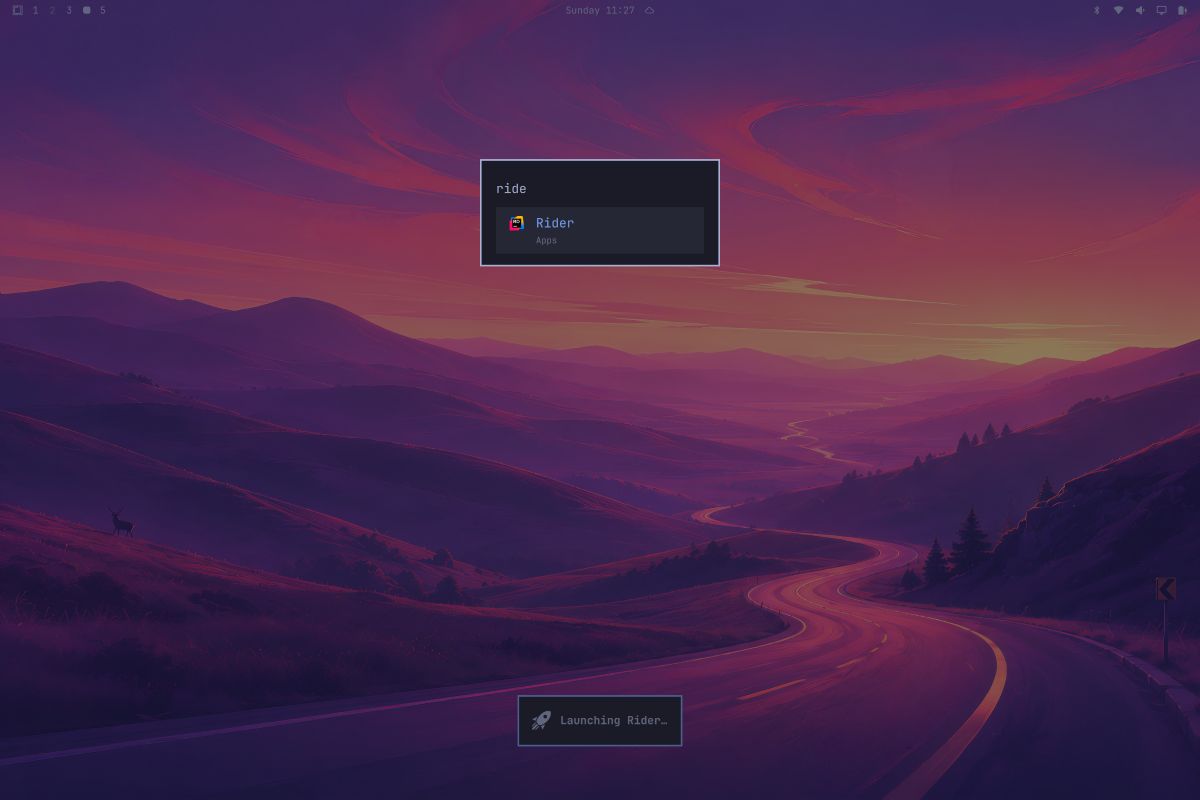
GitHub Copilot CLI helped me finish the setup. I used it to install JetBrains Toolbox, work through a display resolution issue, and then installed Rider.
I did not keep a transcript of every command, so I will not pretend this is a reproducible tutorial. What I can say is that having Copilot directly in the terminal was useful. It could inspect the situation, propose the next command, and help me deal with the small problems that appeared along the way. And it is fully integrated into Omarchy. I had a crash, got a popup, and could delegate the troubleshooting to GitHub Copilot.
JetBrains Toolbox was a convenient way to get Rider installed and keep it managed. Once that was done, I had both setups ready to explore: VS Code with ReSharper and Rider. Later, I realized I could have installed Rider directly from AUR (Arch User Repository).
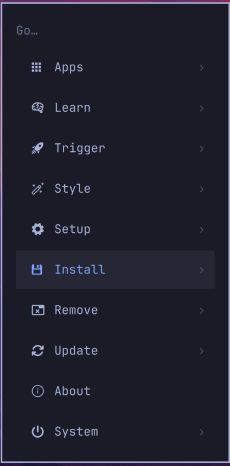
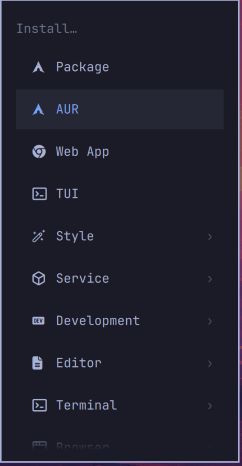
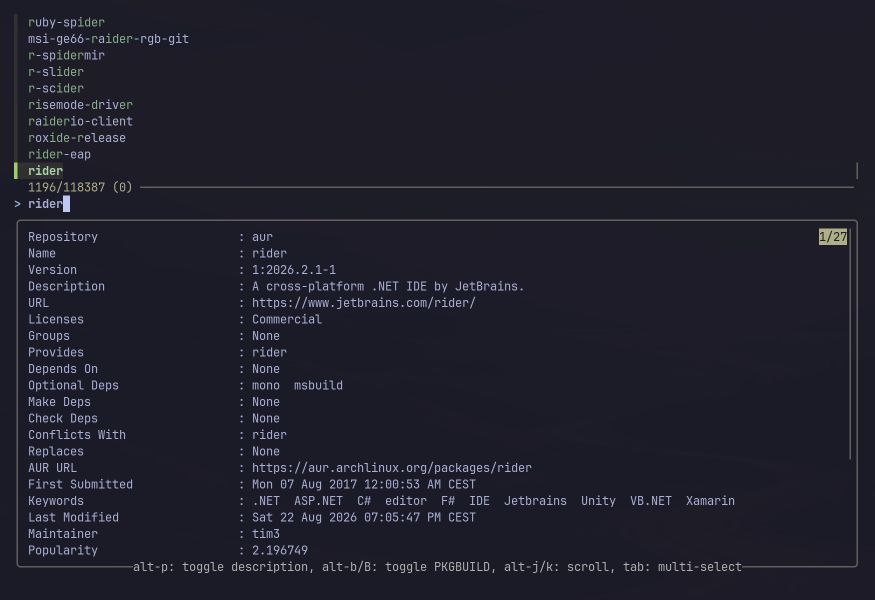
A gorgeous minimal desktop and program starter.
Fixing the Swiss German keyboard setup of my Surface Book
The only real bump was the keyboard configuration, which was not carried over from the setup phase.
Copilot CLI helped me find the right Omarchy configuration and fix it. And now I have it saved in my dotfiles.
The other thing that was not working was the touchscreen. I am so used to scrolling from time to time with my fingers.
This is also where the age and design of the machine matter. The linux-surface compatibility matrix lists the first-generation Surface Book, but some features need the patched linux-surface kernel. Touch, pen, the dedicated GPU, camera, suspend, battery life, and clipboard detachment are all things I still want to test properly.
The stock Omarchy install uses the standard Linux kernel. I am not assuming that every Surface-specific feature works simply because the installation completed.
This is something I will need to try later.
The keyboard workflow clicked
What I like most so far is the way Omarchy wants me to use the keyboard. Yes, people who worked with me will tell you I am a shortcut 🥷🏻.
Super is the Windows key on a Windows machine. Super + Space opens the Omarchy menu. Super + Return opens a terminal. Super + Shift + Return opens the default browser. Super + K shows the shortcuts. The arrow-key combinations move focus and windows. After a little practice, moving between the terminal, editor, and browser starts to feel very direct.
There is a learning curve, and it is a paradigm shift, but the shortcuts do not feel like extras added to a mouse-driven desktop. They are the desktop. That difference is probably why the workflow clicked with me so quickly.
I have only used it for a short time, and I am already reaching for the keyboard instead of searching through menus. I like that very much.
The Omarchy documentation is one of the best I ever read. It answered most of my questions.
Next: real .NET work
The machine is set up, but opening Rider is not the same as proving it can handle day-to-day .NET development.
I installed the .NET 10 SDK in seconds, then installed the Avalonia templates and created an Avalonia MVVM application that compiled and ran immediately.
Next, I want to restore, build, test, and debug a representative solution. I want to try containers, then compare Rider with VS Code plus ReSharper on the same codebase. I will also keep an eye on battery life, suspend and resume, thermals, and the Surface-specific hardware.
So far, the experience has been excellent. In less time than it takes me to make coffee, Omarchy was installed. Soon after that, I had my editors, IDE, and tools ready, with Copilot CLI helping whenever the setup became less obvious.
This helped me discover new tools like herdr, which I am now also testing on my day-to-day Windows machine for development, and I think it will replace my tmux configuration.
I also want to reach the same level of automation that I had achieved with Automating my development machine installation.
Now I want to stop configuring it and write some .NET code.
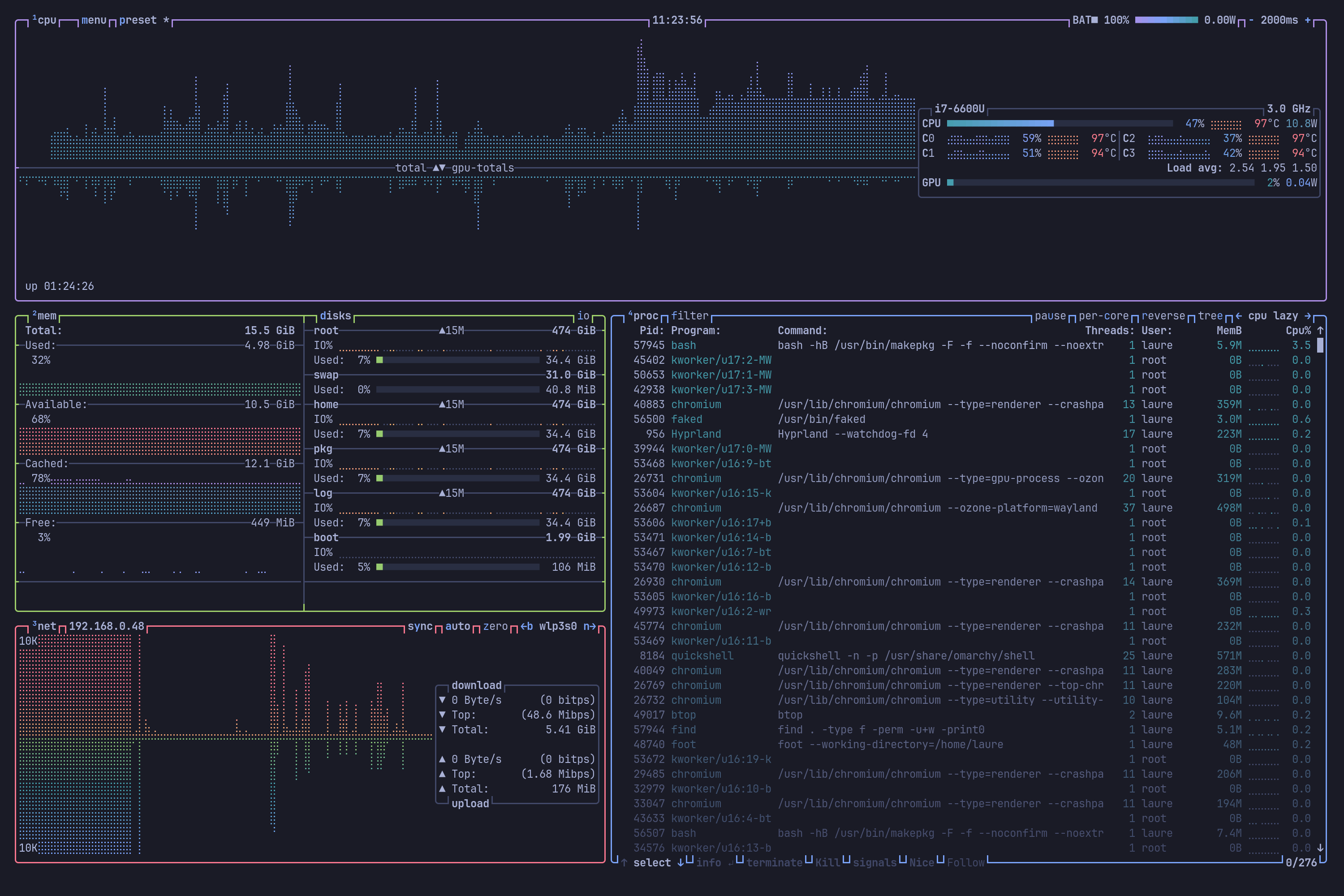
A final screenshot of BTop TUI—so nice!
References
- Welcome to Omarchy, The Omarchy Manual
- Getting Started, The Omarchy Manual
- Hotkeys, The Omarchy Manual
- Development Tools, The Omarchy Manual
- Omarchy base package list
- GitHub Copilot CLI documentation
- C# by ReSharper for VS Code-compatible editors
- Get started with ReSharper in Visual Studio Code
- JetBrains Toolbox App installation
- Install JetBrains Rider
- Surface Book first-generation specifications, Microsoft Support
- Surface Book notes, linux-surface
- Installation and Setup, linux-surface